




HDD, SSD, NVMe: which drive to choose and why it changes everything

HDD, SSD, NVMe, M.2, “512 GB PCIe Gen4”… storage vocabulary is a real maze. Yet it is the component that has transformed our computers the most over the last fifteen years — far more than the processor. Here is the whole story: the differences, the real speeds, the lifespan, the reliable brands, and how to pick the right capacity without getting it wrong.
What is a drive? Back to the workshop
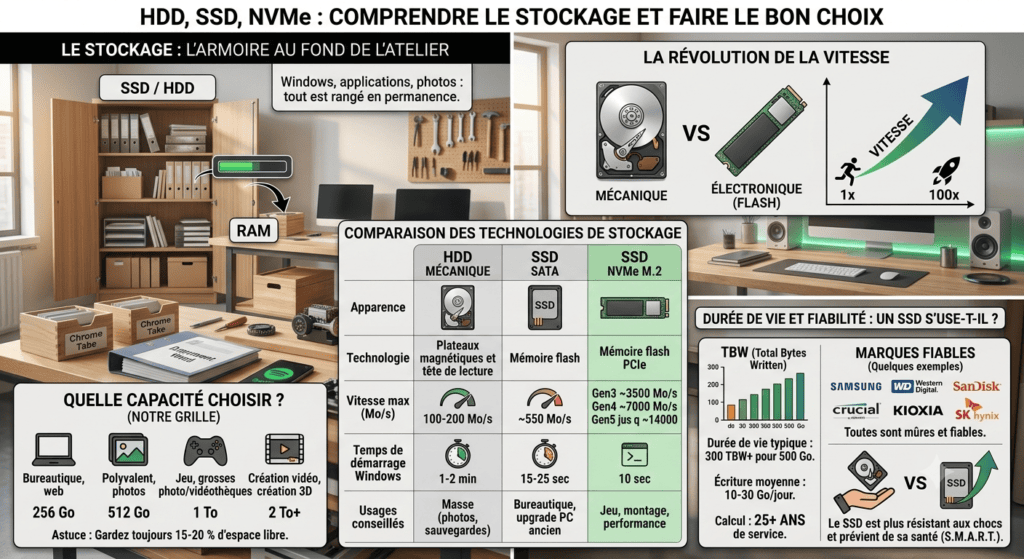
In our article on RAM, we compared your computer to a workshop: the processor is the craftsman, the RAM his workbench, and the drive… the cupboard at the back of the workshop. Everything is stored there permanently: Windows, your programs, your photos, your documents. Unlike RAM, nothing is erased when you switch off.
And that is why the drive matters so much: every Windows start-up, every program you open, every game that loads is a trip to the cupboard and back. A slow cupboard, and the whole workshop waits. That is exactly the difference between an old hard disk and a modern SSD.
HDD, SSD, NVMe: three generations, three worlds
The HDD: the mechanical hard disk
The HDD (Hard Disk Drive) is pure precision mechanics: magnetic platters spinning at 5,400 or 7,200 revolutions per minute, with a read head flying above them — imagine a vinyl turntable that has to jump from one track to another thousands of times per second. To read a file, the head has to physically move to the right spot. That mechanical movement is its downfall: it will always be dozens of times slower than electronic memory.
In 2026 the HDD no longer has a place as a computer's main drive. It survives where it still excels: cheap mass storage — archives, backups, video libraries — where you buy terabytes, not speed.
The SATA SSD: the revolution
The SSD (Solid State Drive) does away with all mechanics: data is stored in flash memory chips — like a giant USB stick, only infinitely faster. Nothing moves, nothing spins: near-instant access, complete silence, shock resistance. The first SSDs used the SATAconnection inherited from hard disks: handy for replacing an HDD, but capped at around 550 MB/s — the SSD was so fast that the cable became the bottleneck.
NVMe: the SSD unleashed
The NVMe (Non-Volatile Memory Express) is not another type of memory — it is an SSD that drops the old SATA cable and plugs straight into the PCIe lanes, the same ultra-fast motorways the graphics card uses. Physically it is a small stick in the M.2 format (the size of a stick of chewing gum) that clips directly onto the motherboard, with no cable at all.
Each PCIe generation doubles the speed: around 3,500 MB/s on Gen3, 7,000 MB/s on Gen4, and up to 14,000 MB/s on the most recent Gen5 drives. Yes, you read that right: up to 100 times faster than a mechanical hard disk.
The speeds in plain figures — and what they really change
| Type | Read speed | Windows start-up |
|---|---|---|
| HDD (mechanical) | ~100–200 MB/s | 1 to 2 minutes |
| SATA SSD | ~550 MB/s | 15 to 25 seconds |
| NVMe SSD Gen3 | ~3,500 MB/s | 10 to 15 seconds |
| NVMe SSD Gen4 | ~7,000 MB/s | ~10 seconds |
| NVMe SSD Gen5 | up to ~14,000 MB/s | ~10 seconds |
Notice something in the last column? Start-up times look much the same from NVMe onwards. This is the truth the spec sheets do not tell you:
- HDD → SSD: this is THE revolution. A transfigured computer, everything becomes instant. If you are still using an HDD as your main drive, this is the most profitable upgrade in all of computing.
- SATA SSD → NVMe: clearly noticeable on large files, installations and loading recent games.
- NVMe Gen4 → Gen5: spectacular in benchmarks, almost invisible in daily use. Beyond a certain point it is no longer the drive that limits you, but the rest of the system. Do not pay a premium for numbers you will never feel.
And in laptops?
This is where the M.2 format changed everything. An NVMe SSD weighs only a few grams, uses almost no power, does not get hot and resists shocks — exactly what a laptop needs. The result: every modern business laptop uses M.2 NVMe SSDs, including the HP EliteBook and Lenovo ThinkPad models in our catalogue.
A huge advantage of the business ranges: the SSD is accessible and replaceable — a few screws, and you go from 256 GB to 1 TB. One more point for the philosophy we already defended in the article on RAM: a good machine is a machine that can evolve. And for those always on the move, a detail that is anything but minor: with no mechanical parts, an SSD survives a knocked laptop without flinching — where an old spinning HDD could give up the ghost.
Lifespan: does an SSD wear out?
This is the question that always comes up. Yes, flash memory has a limited number of write cycles — each cell can only be rewritten a certain number of times. But let's put some figures on that worry:
Manufacturers state endurance in TBW (Terabytes Written): the total amount of data the drive can write in its lifetime. A typical 500 GB SSD is rated at 300 TBW or more. A normal user writes 10 to 30 GB per day. Do the maths: even at 30 GB a day, it would take more than 25 years to wear the drive out. Your computer will be replaced long before that.
Paradoxically, it is the “indestructible” HDD that is the more fragile one: mechanical parts spinning permanently, sensitivity to shocks and vibration, bearing wear. An HDD failure is often brutal and without warning; an SSD, on the other hand, warns you — its health can be read at any time via the S.M.A.R.T. data (with a free tool such as CrystalDiskInfo), and at the end of its life it usually switches to read-only: your data stays readable.
The brands: who makes what?
The SSD market is dominated by a handful of players who actually make the flash memory chips — the others assemble:
- Samsung — the world number one, makes everything itself (chips, controller). Its 990 Pro/Evo series are absolute benchmarks.
- Western Digital / SanDisk — the other historic giant, present from the consumer range (WD Blue) to the high end (WD Black for gaming).
- Crucial (Micron) — an American memory manufacturer, excellent value for money, a safe bet for upgrades.
- Kioxia — the former memory division of Toshiba… in other words, the inventor of flash memory. Very common as the original drive in business laptops.
- SK Hynix — a Korean memory giant, original supplier to many major manufacturers.
- Kingston — a well-regarded assembler, everywhere, reliable and keenly priced.
- Seagate and Western Digital — for mass-storage HDDs, these are the last two big survivors of the mechanical disk.
The good news: with all these manufacturers the market is mature — bad SSDs have practically disappeared. Stick to these brands and you really cannot go wrong.
Which capacity should you choose? Our simple guide
| Your profile | Recommended capacity | Why |
|---|---|---|
| Office work, web, email | 256 GB | Windows + Office + documents fit comfortably |
| All-round use, photos, home working | 512 GB | The sweet spot: room to spare for years without paying too much |
| Gaming, large photo libraries | 1 TB | Recent games often exceed 100 GB each |
| Video creation, large libraries | 2 TB and above | 4K video devours space — possibly alongside an HDD for archiving |
One last practical tip: always keep 15 to 20 % of free space on your SSD. A drive filled to the brim slows down and wears out faster — flash memory needs free cells to spread writes properly.
At TechElite: you choose your configuration
Everything above leads to a simple conclusion: the right configuration depends on your use, not on a standard spec sheet. That is exactly why, in our shop:
- On every refurbished laptop you choose the amount of RAM and the drive capacity yourself directly on the product page — like in a restaurant, you compose your machine. Need more room for your photos? Take 1 TB. Simple office use? 256 GB is enough, and you save money.
- All our laptops come with NVMe SSDs — never a mechanical disk, never a tired old SATA drive. Start-up in a few seconds, guaranteed.
- And like the RAM, the drive stays upgradable: our HP EliteBook and Lenovo ThinkPad business ranges let you replace the SSD later if your needs grow.
Every drive installed is tested, its health checked, and covered — like the whole machine — by our 24-month warranty, refurbished included.
Build the machine you need
Choose your model, your RAM, your drive — and if you are hesitating, just tell us what you use your computer for: we will advise the right configuration, without overselling.
Discover our refurbished laptops with a 24-month warranty or contact us for personal advice.